
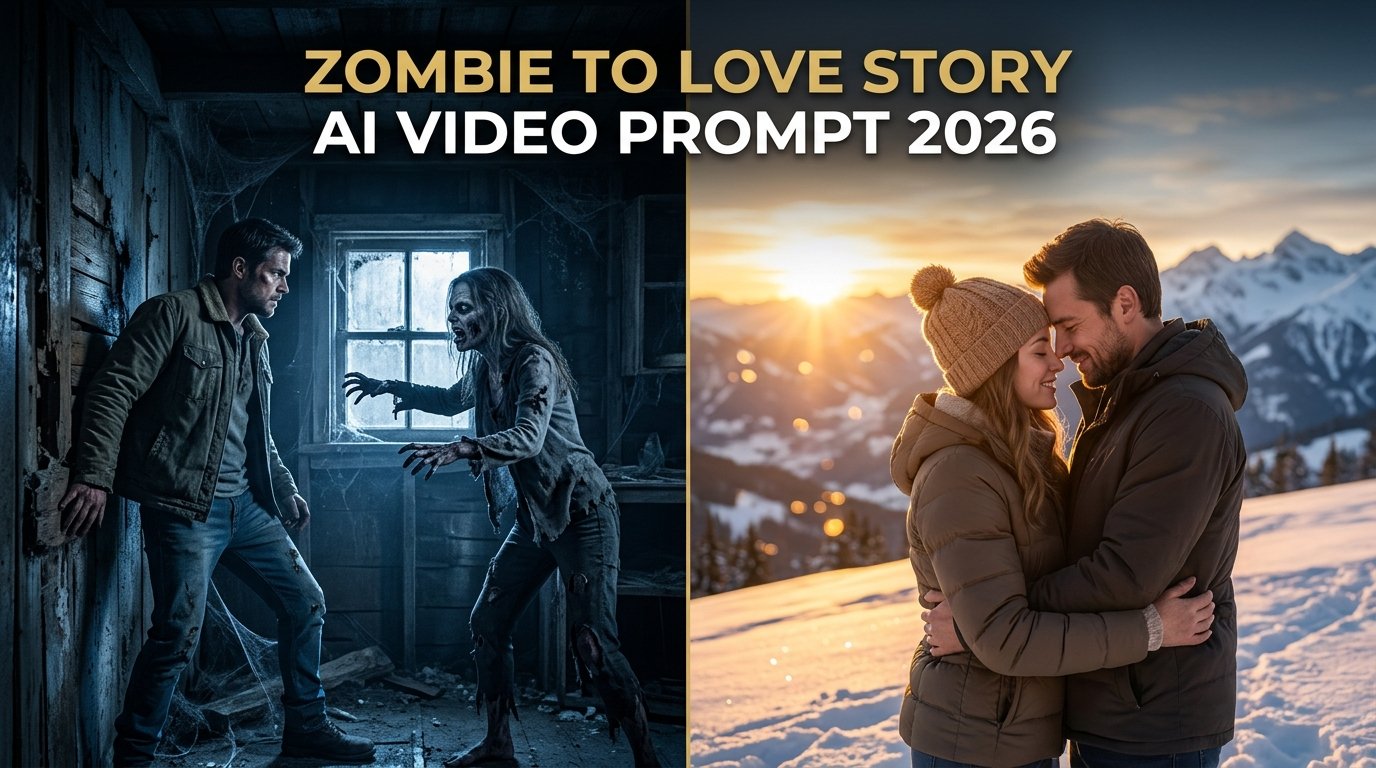
AI video generation has moved far beyond simple image animations, evolving into a powerful medium for digital storytelling. One of the most creative and emotionally gripping trends taking over Instagram Reels and TikTok is the Zombie to Love Story Memory AI Video.
This cinematic concept blends horror, emotional conflict, and romance into a single short narrative. It begins in an abandoned, snow-covered mountain cabin where a man confronts a zombie version of the woman he loves, battling inner turmoil before surrendering and opening his arms. As she leaps into his arms, the dark, horrifying scene magically dissolves into a warm, golden-hour memory on a snowy mountain slope.
This comprehensive guide covers everything you need to craft your own viral horror-romance masterpiece, complete with dual master prompts, multi-step tool workflows, and expert optimization tips.
What Is the Zombie to Love Story Memory AI Video?
The Zombie to Love Story concept functions like a miniature cinematic film divided into two contrasting emotional moods:
- Part 1 (The Horror & Conflict): Set inside a cold, abandoned mountain cabin, the video captures fear, grief, and heartbreak as a man faces a female zombie who maintains the recognizable facial features of his loved one. Instead of fighting, he lowers his weapon, closes his eyes, and opens his arms. She sprints toward him and leaps into his embrace.
- Part 2 (The Romantic Memory): The moment they collide, the grim reality vanishes, transitioning into a warm, nostalgic memory from their past. Set on a sunlit snowy mountain during golden hour sunset, the couple falls into the soft snow, laughs, embraces, runs together, and finishes with a tender forehead kiss.
Interactive AI Prompt Workspaces
To achieve this flawless transition, the workflow is split into two separate generations using two exact character reference images (Reference Image 1 = Man, Reference Image 2 = Woman). Use the interactive tools below to copy your prompts.
Prompt 1: The Zombie Cabin Scene (Part 1)
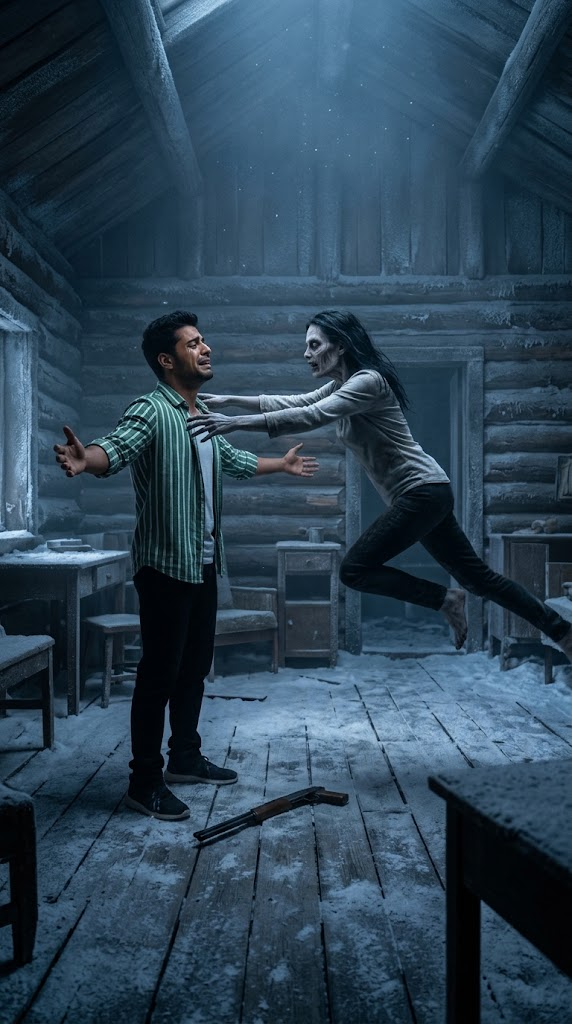
Create a 10-second photorealistic cinematic video using the 2 uploaded reference images (Reference Image 1 = MAN, Reference Image 2 = WOMAN). Set the scene inside a dark, cold, abandoned snow-covered mountain cabin during twilight with moody blue-gray tones and volumetric dust. The man (matching Reference Image 1) stands emotionally conflicted, holding a weapon with tears in his eyes. Facing him is the woman (matching Reference Image 2), transformed into a zombie version while retaining her exact recognizable facial identity, pale skin, and hollow eyes. Overcome with emotion, the man lowers his weapon, drops it to the floor, closes his eyes, and opens his arms wide. The zombie woman breaks into a sudden sprint, running directly toward him and leaping powerfully into his open arms, locking into a tight embrace as they begin to fall forward. Cinematic lighting, photorealistic textures, 4k resolution, natural physics.
Prompt 2: The Romantic Memory Scene (Part 2)
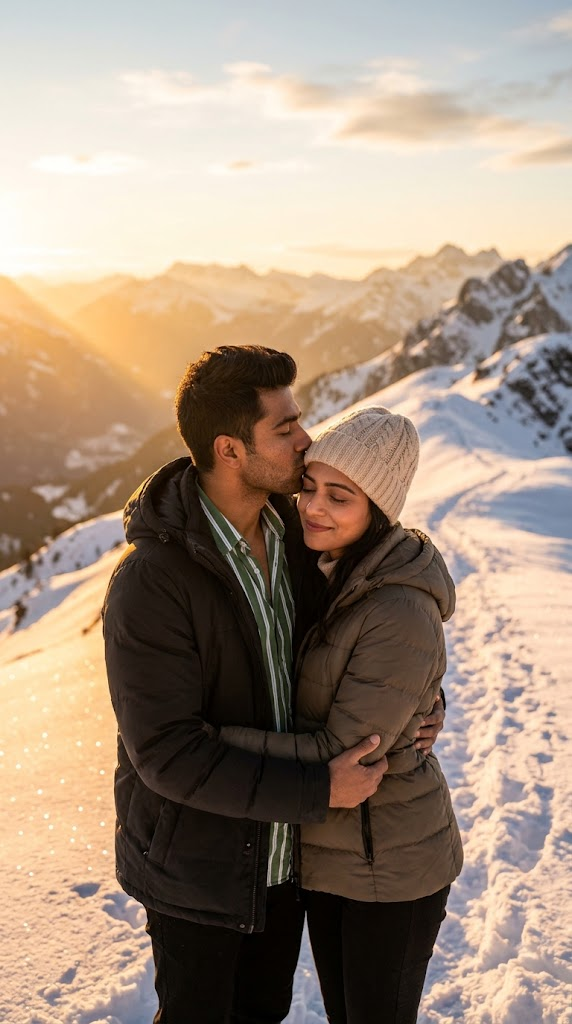
Create a 10-second photorealistic cinematic video using the SAME TWO uploaded reference images again (Reference Image 1 = the SAME MAN, Reference Image 2 = the SAME WOMAN). Instantly transform the atmosphere into a warm, nostalgic memory on a breathtaking snowy mountain slope during a golden-hour sunset. The woman is now fully healthy, glowing with warmth, and wearing cozy winter apparel. The clip begins seamlessly from their embrace, showing them tumbling playfully into the soft, glittering snow. They laugh joyfully, hug tightly, run together across the snowy ridge, and finish the sequence standing close together with the man giving her a tender, loving forehead kiss. Warm golden-orange sunset lighting, sparkling snow crystals, romantic atmosphere, high detail, 4k resolution, smooth cinematic motion.
Step-by-Step Tutorial: How to Create This Video
Step 1: Prepare Your Reference Photos
- Select one clear, high-resolution photo of the man (Reference Image 1) and one clear photo of the woman (Reference Image 2).
- Ensure both faces are unobstructed and clearly visible so the AI can maintain strict character consistency across both generations.
Step 2: Generate Part 1 (The Zombie Cabin Scene)
- Open Flow AI, Gemini, or your preferred AI video generation tool that supports dual image references.
- Upload both reference photos, paste Prompt 1 into the text box, and generate your first clip. Save the resulting video file.
Step 3: Generate Part 2 (The Love Memory Scene)
- Upload the exact same two reference images again to maintain visual continuity.
- Paste Prompt 2 into the prompt box and render the second clip. (Pro Tip: If your tool supports continuation features, use the final frame of Part 1 as a starting frame for Part 2 to ensure a flawless match on the embrace pose.)
Step 4: Stitch and Polish in Editing Software
- Import both rendered clips into CapCut, VN Video Editor, or your preferred desktop editor.
- Trim the clips at the exact moment of the embrace collision, add a smooth dissolve or match-cut transition, layer cinematic horror-to-romantic background music, and export your final viral Reel.
Frequently Asked Questions (FAQs)
Q1: Do I need to use different photos for Part 1 and Part 2?
Answer: No! The golden rule of this trend is to use the exact same two reference images for both parts. This allows the AI to recognize the characters while transitioning the woman from a zombie back into her healthy, glowing self.
Q2: What tools support dual image references for AI video generation?
Answer: Advanced video platforms like Flow AI and specialized multimodal engines allow you to input multiple character reference assets simultaneously.
Q3: How do I make the transition between the cabin and the snowy mountain look seamless?
Answer: Matching the physical action is key. Ensure that the final embrace pose in Part 1 aligns cleanly with the initial falling motion in Part 2, and use a quick cross-dissolve during post-production editing.